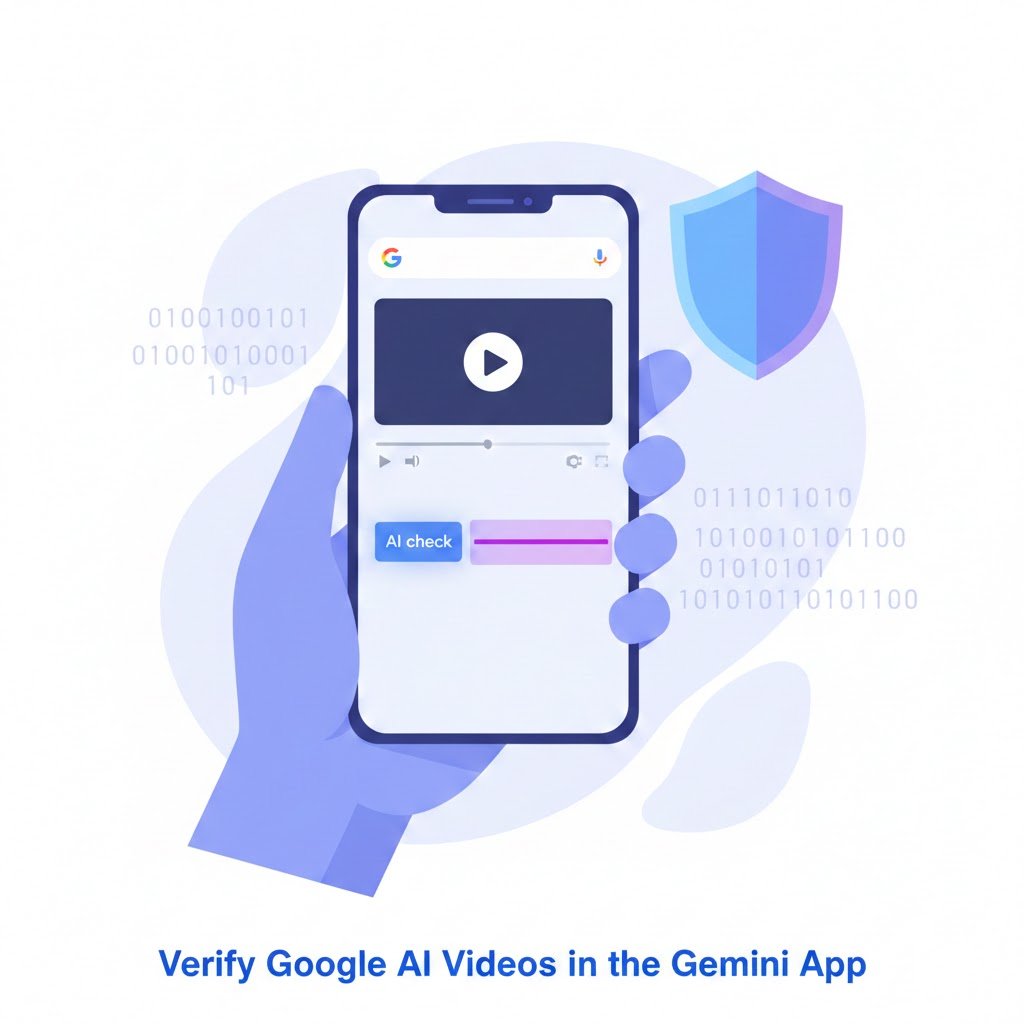
What Does “Verify Google AI Videos in the Gemini App” Mean?
Verify Google AI Videos in the Gemini App means you can upload a clip into the Gemini app and ask it to tell you whether Google AI helped generate or edit that video. Instead of guessing if a clip is real or AI‑made, you get a clear answer based on hidden AI watermarks called SynthID.
Google launched this option because AI‑generated videos and deepfakes are growing very fast on social media, and many people cannot easily see the difference between real footage and synthetic content. By letting you Verify Google AI Videos in the Gemini App, Google wants to make AI content more transparent and help normal users understand how a video was created.
Why Google Added “Verify Google AI Videos in the Gemini App”
There are strong reasons behind this new option to Verify Google AI Videos in the Gemini App. AI tools can now create realistic fake speeches, fake news clips, or edited videos that change the meaning of real events in just a few minutes.
Misinformation like this can affect elections, damage reputations, and spread fear during crises. With the ability to Verify Google AI Videos in the Gemini App, people get at least one quick and reliable signal about whether Google AI was involved in making a video before they decide to trust or share it.
How to Verify Google AI Videos in the Gemini App (Step by Step)
The process to Verify Google AI Videos in the Gemini App is designed to be simple so even non‑technical users can follow it. You only need a Google account, the Gemini app, and a short video clip.
Step 1: Open and update the Gemini app
First, open the Gemini app on your phone or in a web browser and sign in with your Google account. Make sure the app is updated to the latest version, because new releases improve SynthID detection and add more formats you can verify in the Gemini App.
Step 2: Upload the video to the Gemini app
Next, Verify Google AI Videos in the Gemini App by tapping the attachment or upload icon inside the chat. Choose the clip from your gallery or downloads; at this time, Gemini supports videos up to about 100 MB in size and around 90 seconds in length for this verification feature.
Step 3: Ask Gemini to verify the video
When the upload finishes, type or speak a clear prompt such as:
- “Verify Google AI Videos in the Gemini App for this clip.”
- “Was this video created using Google AI?”
- “Is this video AI‑generated?”
You can also use a built‑in command like @synthid to start the verification faster when you want to Verify Google AI Videos in the Gemini App.
Step 4: Read the verification result from Gemini
Gemini then scans the video’s frames and audio track for a hidden SynthID watermark. Instead of a simple yes or no, the result explains what was found, for example: “SynthID detected in audio between 10–20 seconds; no SynthID detected in visuals.”
This detailed message tells you which parts of the clip are likely AI‑generated, which makes the decision to trust, question, or share that video much easier after you Verify Google AI Videos in the Gemini App.
How SynthID Helps You Verify Google AI Videos in the Gemini App
To Verify Google AI Videos in the Gemini App, Gemini relies on SynthID, Google’s invisible watermarking system for AI content. When Google’s AI models create media, they can embed a tiny digital pattern inside the file that people cannot see or hear but that special tools like Gemini can detect.
SynthID is designed so that:
- The watermark is invisible and inaudible, so it does not affect the quality of the video.
- The mark remains even after common edits like compression, cropping, or light filters that happen when people share videos online.
- Detection tools can scan a file and output a probability that a SynthID watermark is present in the audio, visuals, or both, which is what you see when you Verify Google AI Videos in the Gemini App.
Google originally released a separate SynthID Detector portal for checking images and other media. Now, instead of leaving the app, you can use the same technology directly when you Verify Google AI Videos in the Gemini App, which makes the process faster and more user‑friendly.
Limits When You Verify Google AI Videos in the Gemini App
A complete, honest guide must also show the limits of this feature when you Verify Google AI Videos in the Gemini App. This stops readers from thinking the tool can magically detect every type of fake video.
- The verification works mainly on content that used Google’s own AI tools or partners that embed SynthID; if another company’s AI model created a video with no SynthID, Gemini may say no watermark was found even if the clip is AI‑generated.
- Right now you Verify Google AI Videos in the Gemini App only for short clips (about 90 seconds, ~100 MB), not for long movies or multi‑hour livestreams.
- The tool shows if Google AI was involved, but it does not judge whether the events in the video are true, edited out of context, or misleading; fact‑checking still needs human judgment and other tools.
Because of these limits, the result you get when you Verify Google AI Videos in the Gemini App should be seen as one strong signal, not a final decision about reality.
Why You Should Verify Google AI Videos in the Gemini App Before Sharing
There are several reasons why people should Verify Google AI Videos in the Gemini App before they repost clips on social networks or messaging apps. Modern AI can create very realistic deepfake videos that show public figures saying or doing things they never did.
When you take a few seconds to Verify Google AI Videos in the Gemini App, you:
- Slow down misinformation, because you double‑check whether Google AI generated or edited the clip before amplifying it.
- Help journalists and fact‑checkers, because they can combine Gemini’s result with reverse image search, trusted news sources, and on‑the‑ground reporting for a stronger investigation.
- Encourage responsible AI use, because transparent creators can tell their audience that they can Verify Google AI Videos in the Gemini App to see where AI was used in the production process.
This feature fits into larger industry efforts to label AI‑generated content and follow open standards such as C2PA content credentials.
Best Safety Tips When You Verify Google AI Videos in the Gemini App
To get the most from this tool, follow simple best practices whenever you Verify Google AI Videos in the Gemini App.
- Check high‑risk videos first. If a clip involves elections, wars, protests, or breaking news, run it through Gemini before you share it or react strongly.
- Combine tools for better judgement. Use Gemini’s output plus other methods like reverse image search, comparison with trusted news sites, and official statements; “no SynthID detected” does not guarantee the video is human‑made.
- Keep Gemini up to date. Update the app regularly so you always have the latest version of SynthID detection when you Verify Google AI Videos in the Gemini App.
- Respect privacy and rights. Avoid uploading private or copyrighted videos that you are not allowed to share, even when your goal is only to Verify Google AI Videos in the Gemini App.
These habits make the feature more effective and protect both you and other people from the worst kinds of AI‑driven misinformation.